
Elokencia is now live.

Connect Zoom
Follow these steps to integrate Zoom with your Elokencia account.
Step 1: Log in to the Elokencia Platform
Begin by signing into your account on the Elokencia platform.
Step 2: Access Settings
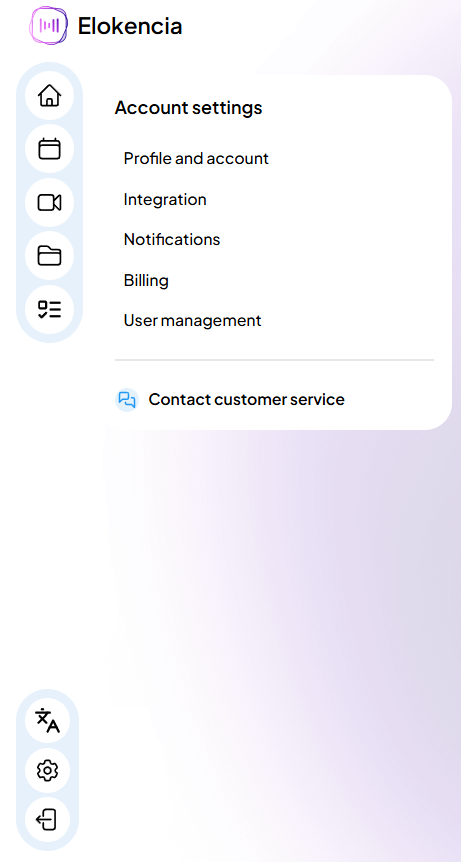
Locate the Settings icon in the bottom-left corner of the sidebar.
Click the icon to open the settings menu.
Step 3: Navigate to Integrations
A submenu will appear.
Click on Integration from the list of options.
Step 4: View Available Integrations
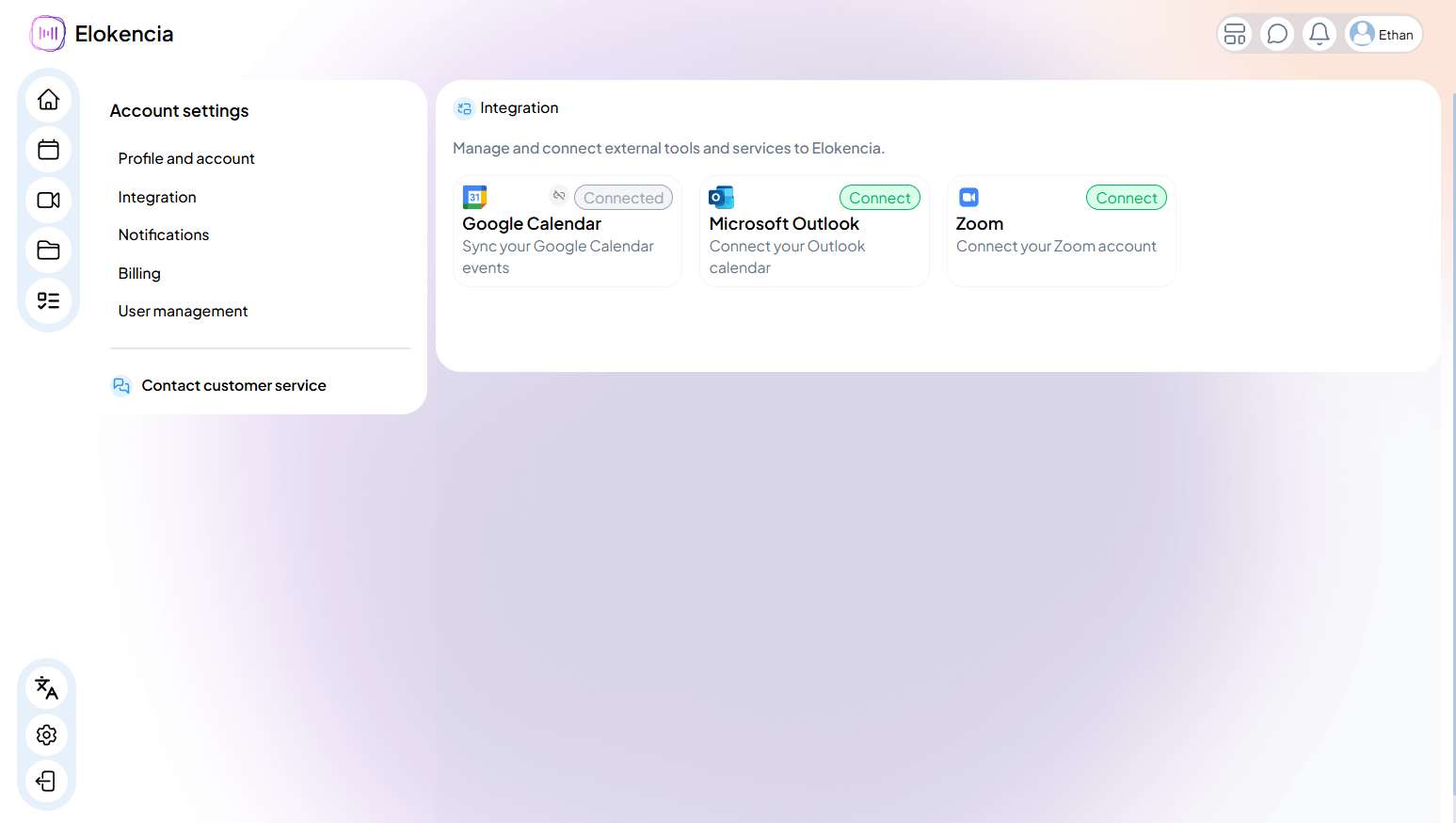
You’ll be directed to a page displaying all platforms that can be integrated with Elokencia.
Browse the list to find the Zoom logo.
Step 5: Connect Zoom
Click on the Zoom logo to initiate the integration process.
Follow any prompts that appear to authorize and complete the connection.
Step 6: Confirm Successful Connection
Once the integration is complete, a “Connected” status will appear at the top of the Zoom logo.
This confirms that Zoom is now successfully linked to your Elokencia account.
You're All Set!
You can now use Zoom within the Elokencia platform. If you encounter any issues during setup, please contact support or refer to the help center.